mvg-guide
🇺🇸 Mobile Vault Guard (MVG) - User Guide
🚀 Initial Installation & Account Setup
Because MVG operates on a strict Zero-Knowledge Architecture, all processing happens 100% locally on your physical device. Ensure you complete the setup entirely to properly shield your system.
- Download the App: Install the official version directly from the Google Play Store.
- Initialize Master User: Upon launching the app for the first time, you must set up the Master User. This account acts as the primary Administrator of the telephone.
- Note: By default, this account is assigned Clearance Level 5, and all applications on your phone will automatically lock to ensure immediate security.
- Complete Registration Form: Fill out the registration form with all required information. Make sure to record your master credentials securely offline.
- Log In: Once the registration form is complete, proceed to log in with your newly created Master User credentials.
⚙️ Post-Login Configuration
To activate your zero-knowledge privacy shield, you must explicitly grant permissions and toggle the security configurations.
- Accept Permissions: Immediately after a successful login, click on the Accept & Configure prompt to allow the app to run its secure governance systems.
- Activate Configurations: From the main app Dashboard, press the configuration buttons highlighted in red to activate them.
- Finalize Lockdown: ⚠️ Important: All configurations are strictly required to be activated for the application to fully shield and secure your phone against unauthorized access.
📸 App Preview
Explore the interface of MVG. All screens visualized below load directly from your local repository assets.
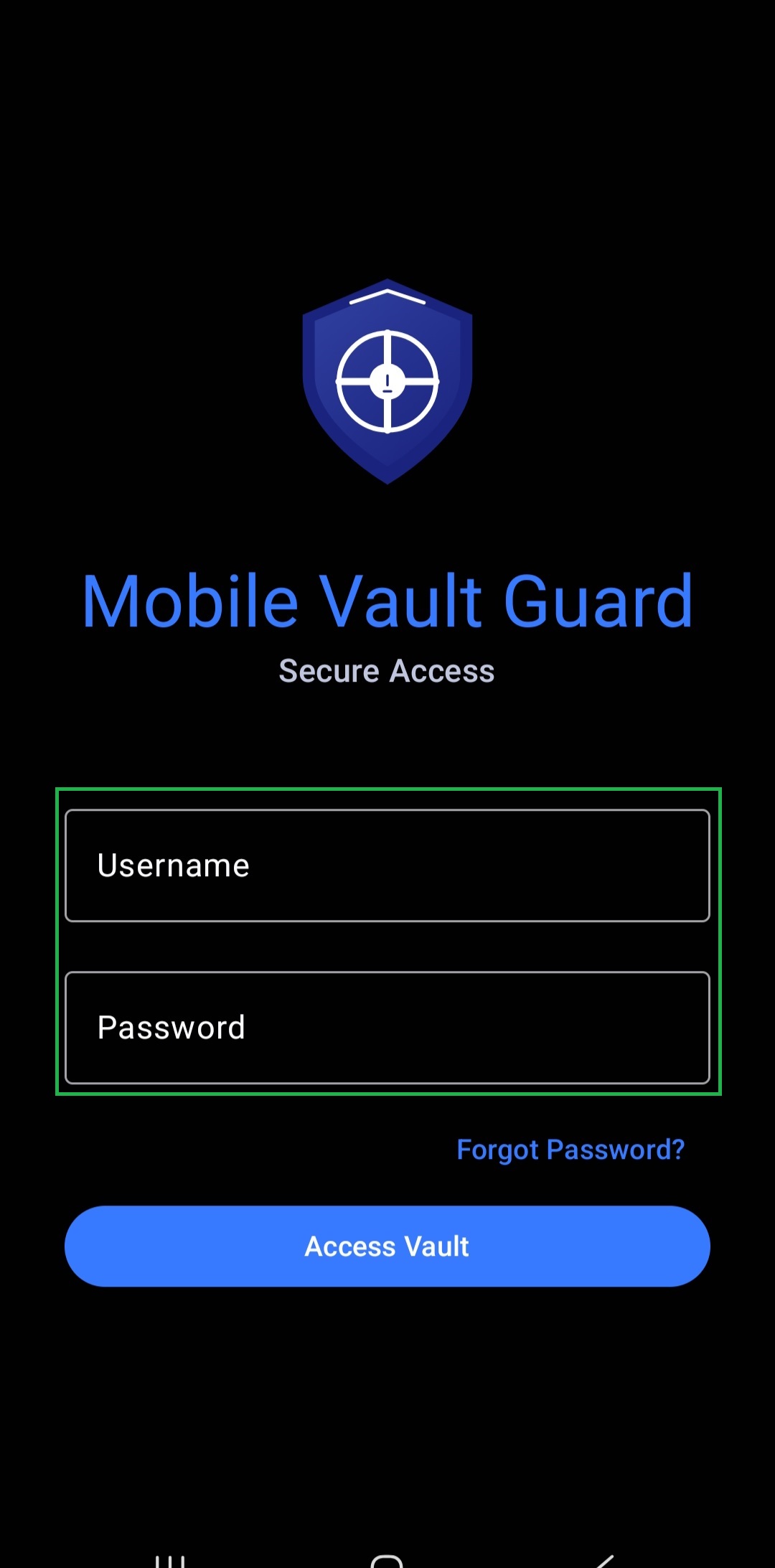 Step 1 Log in |
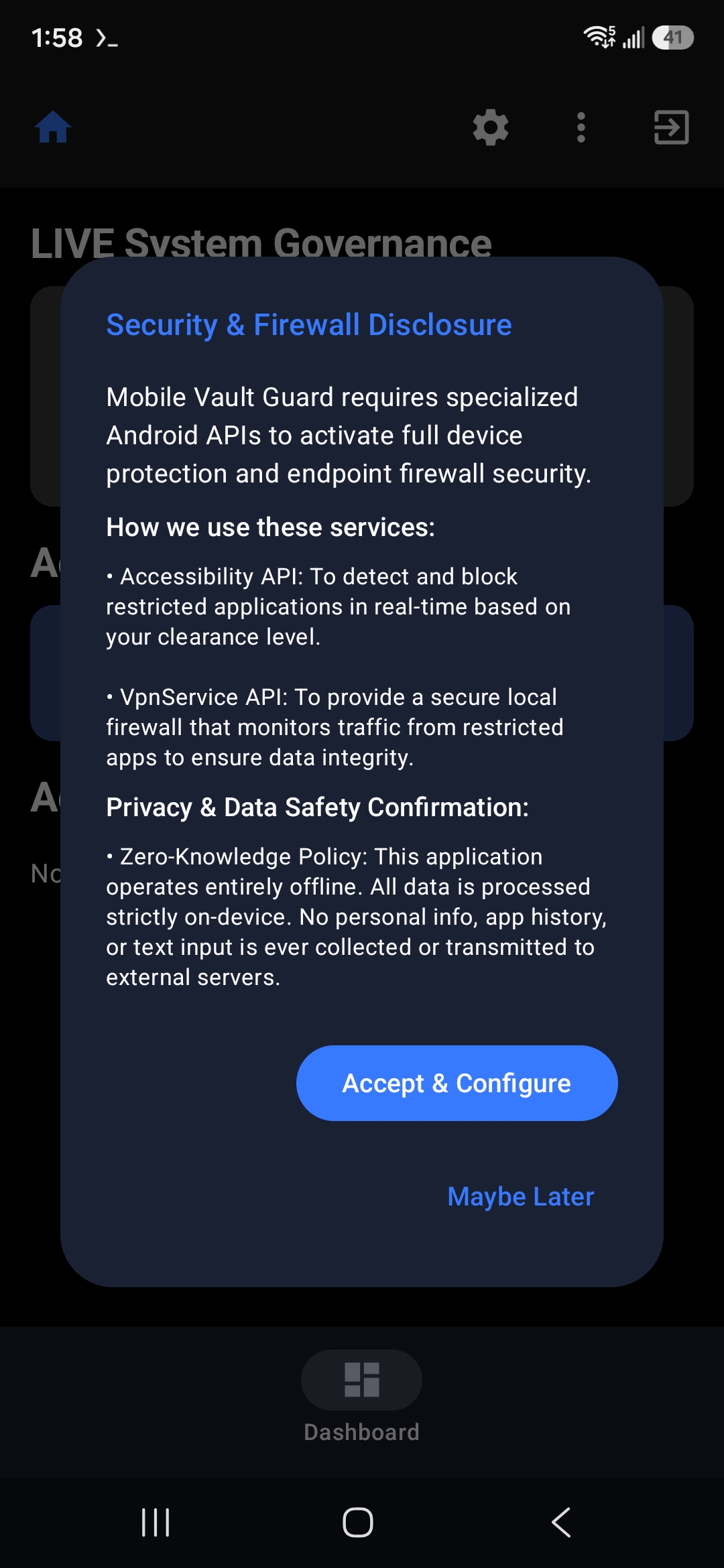 Step 2 Press Accept and Configure |
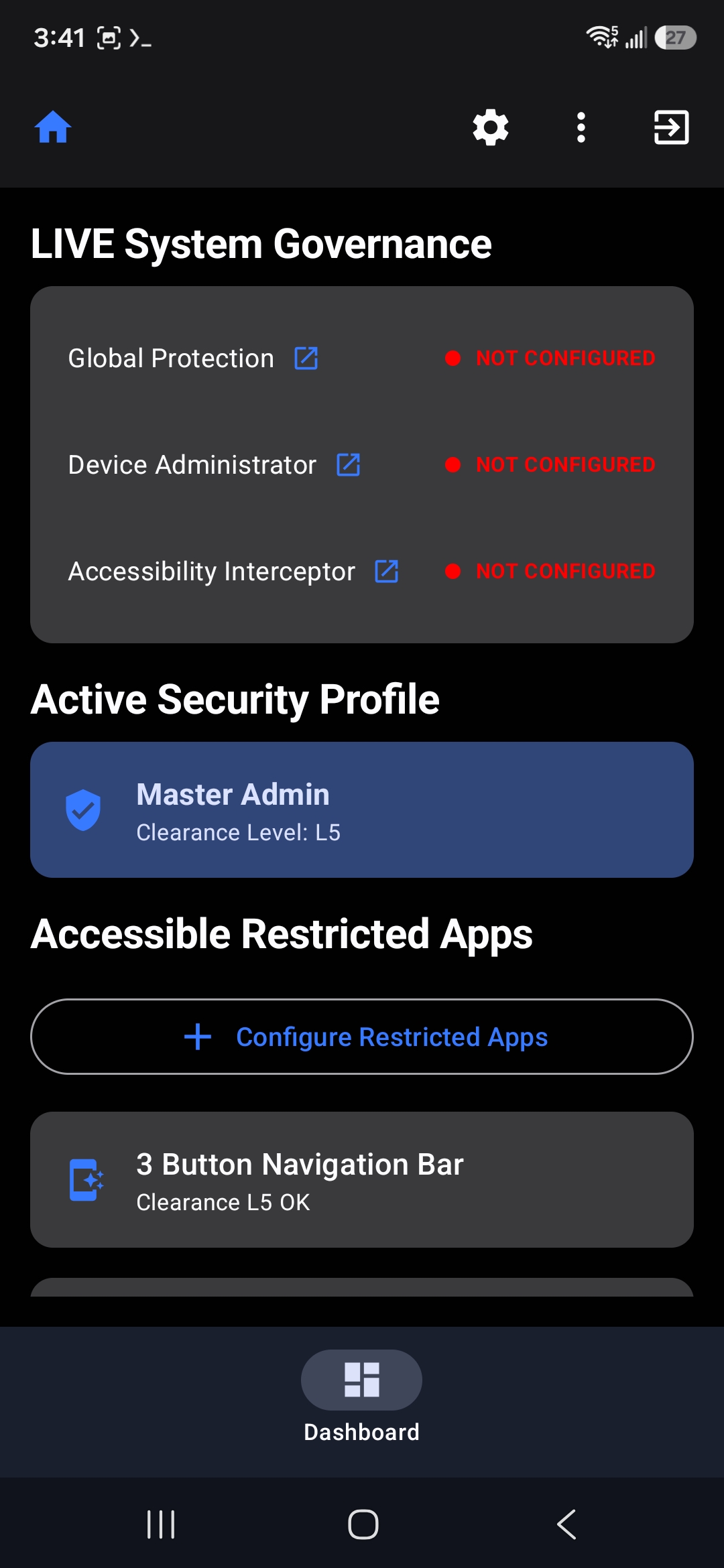 Step 3 Dashboard before enabling the configuration |
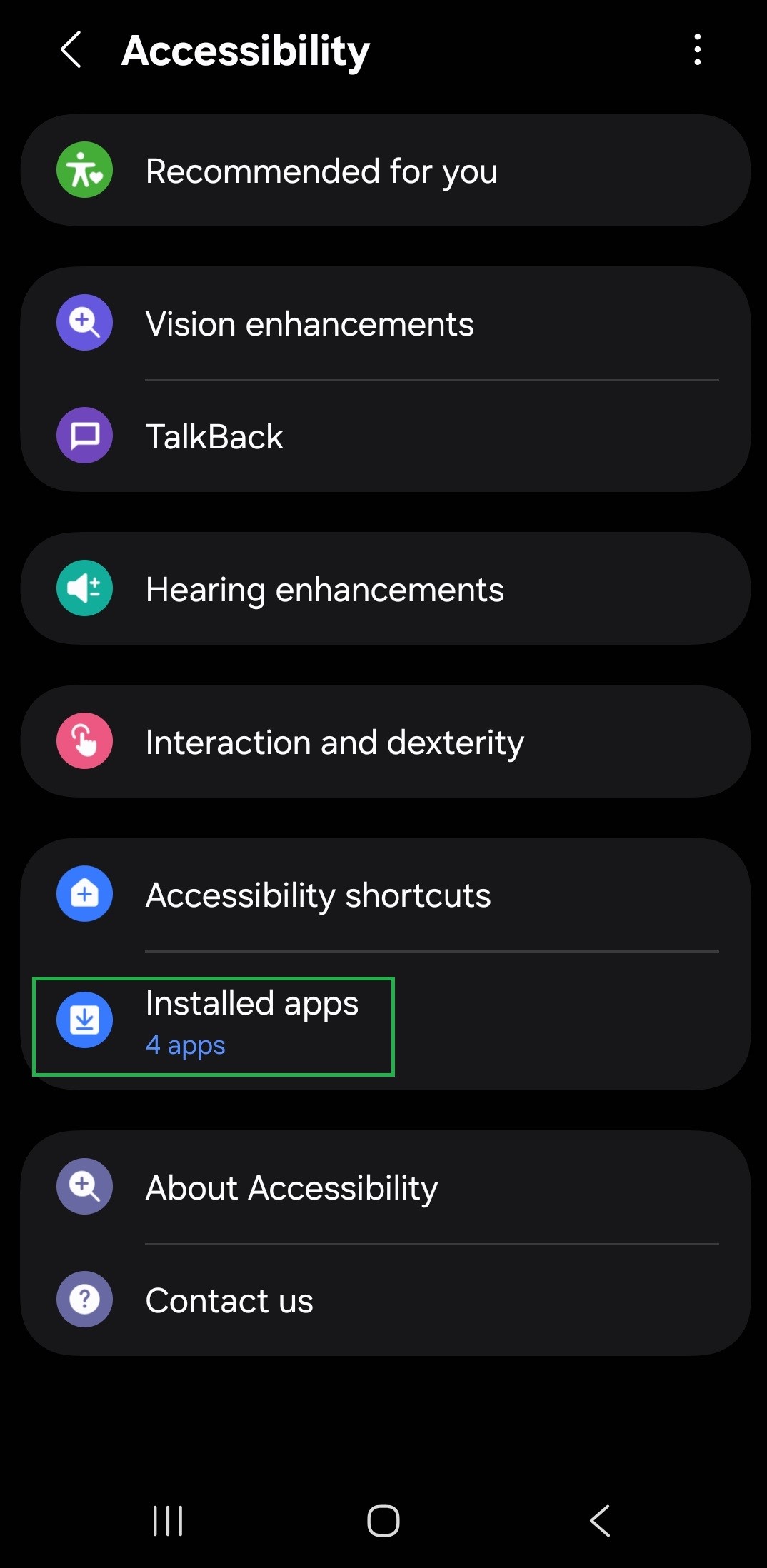 Step 4a Open Accessibility settings |
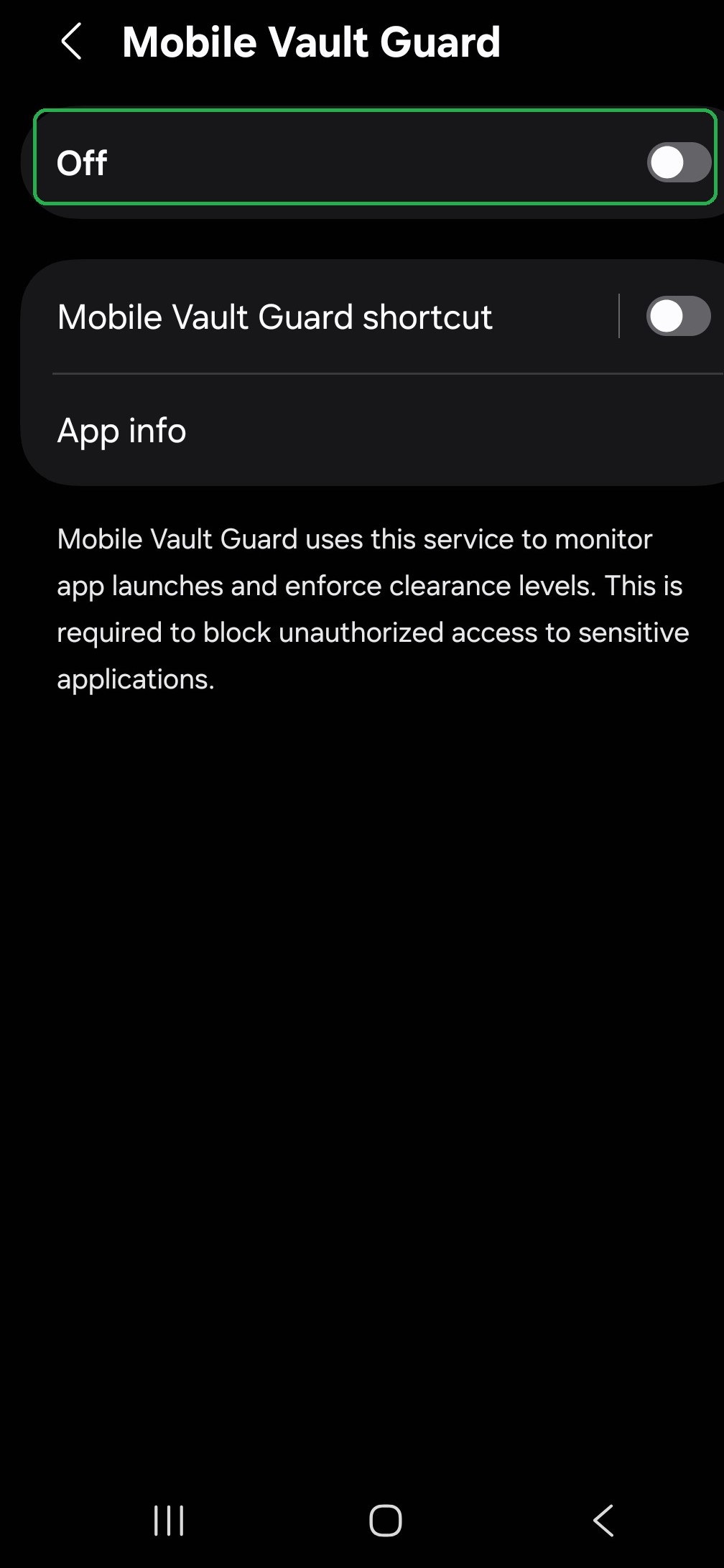 Step 4b Select VaultGuard |
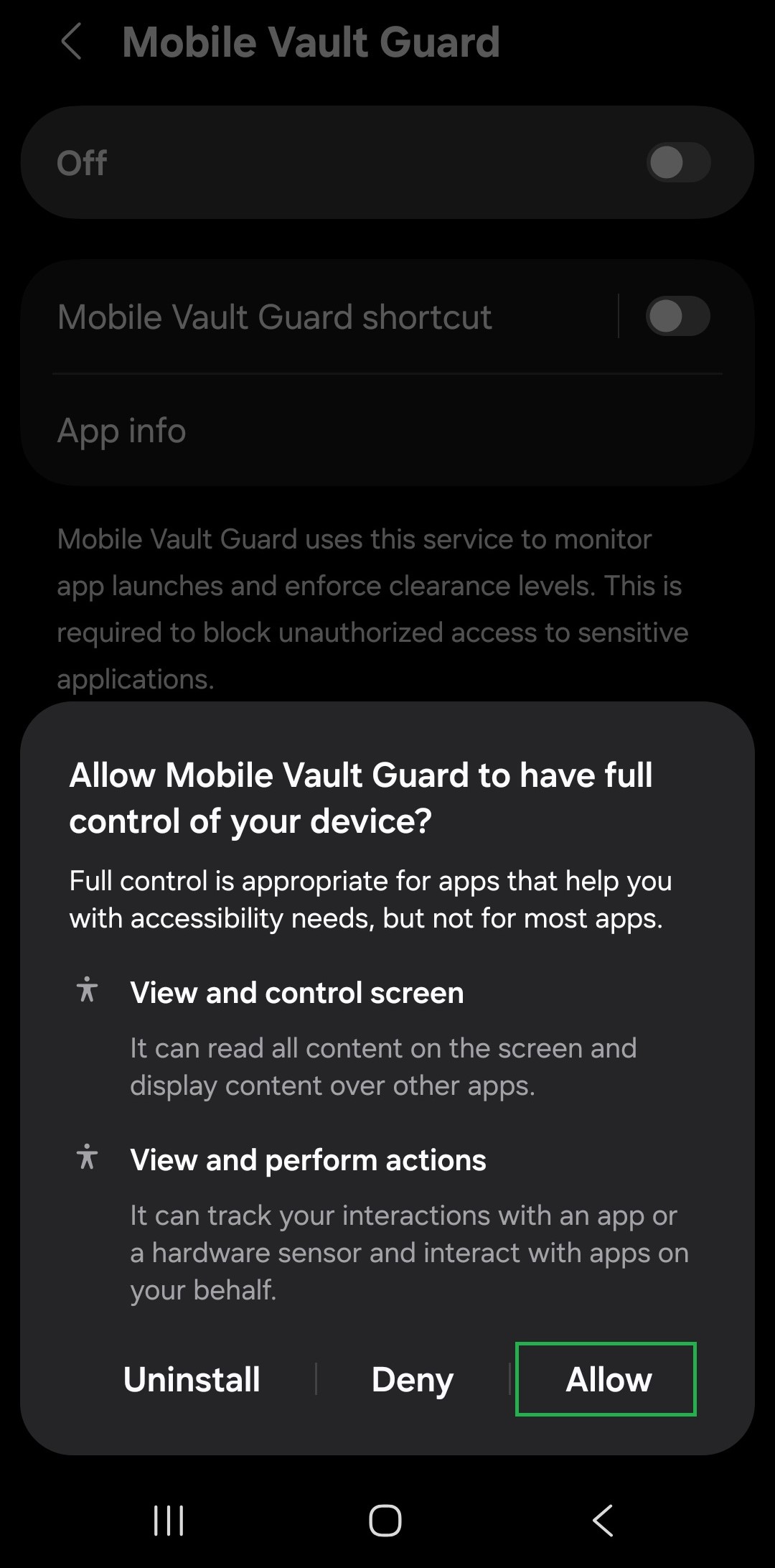 Step 4c Turn the service on |
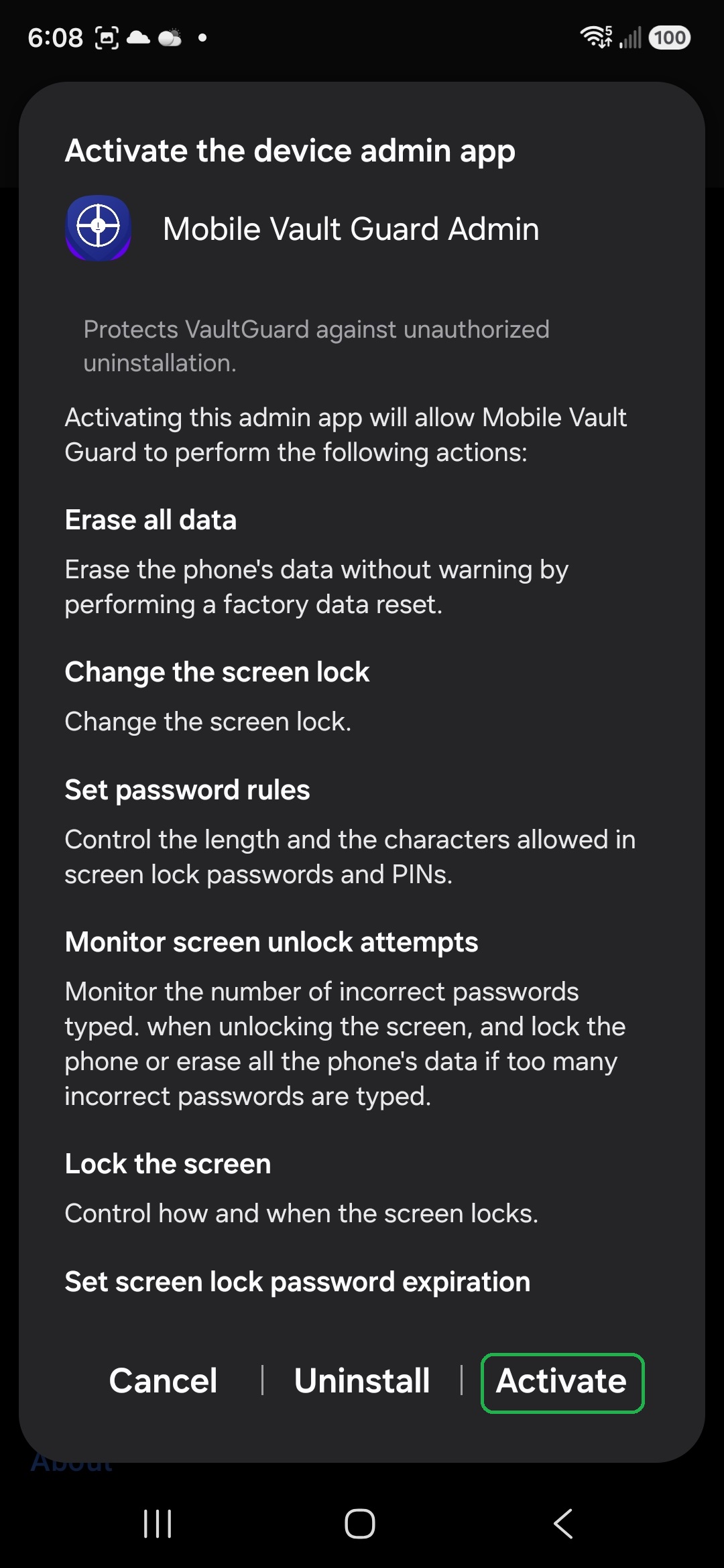 Step 5 Activate the administrator configuration |
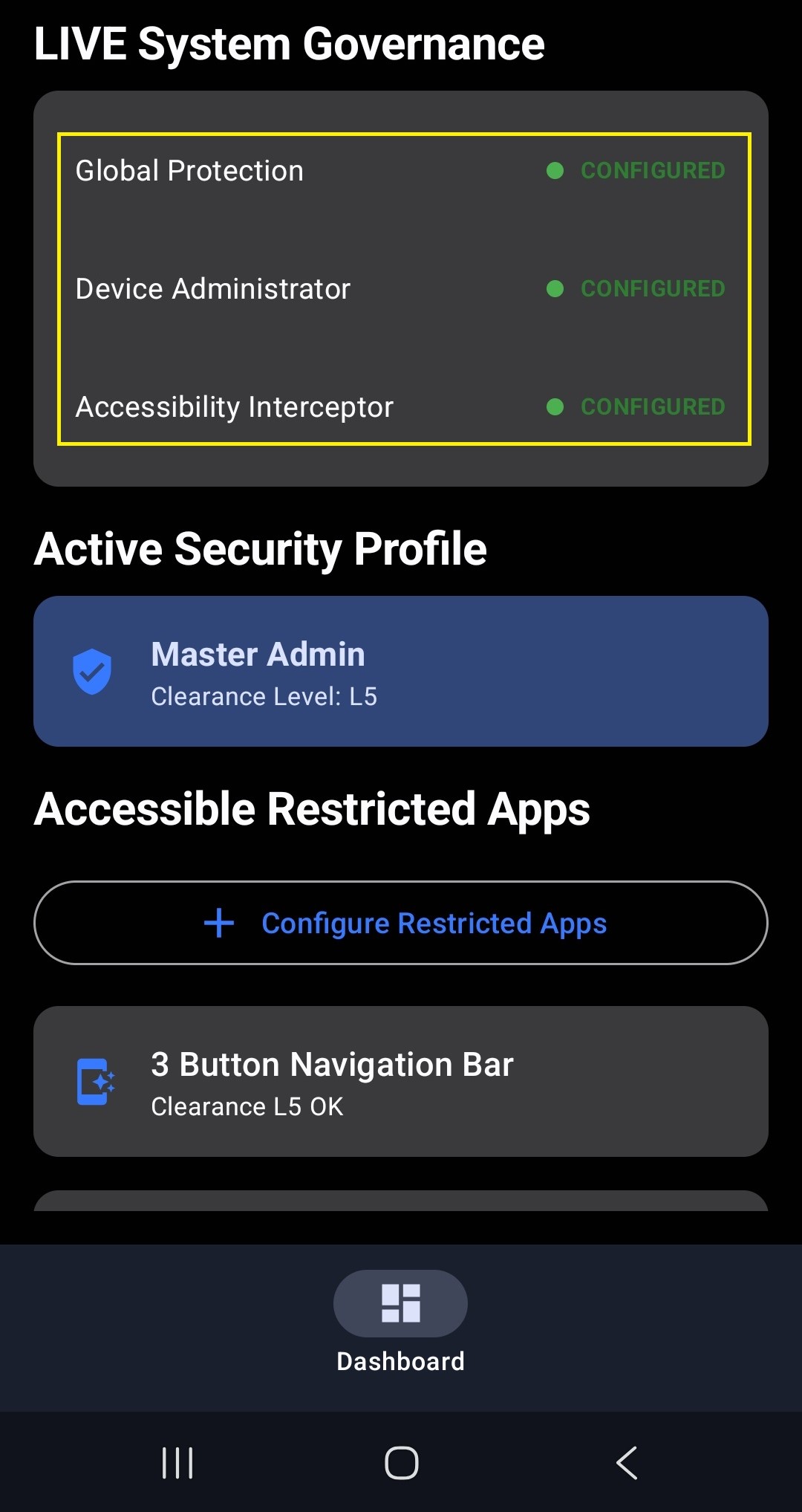 Step 6 Dashboard after enabling the configuration |
💡 Practical Security Use Cases
Once all configurations are successfully activated, you can utilize the following use cases to secure your device based on your specific daily routines:
1. Testing Default Security
To verify that your privacy shield is working immediately after setup:
- Step 1: Log out / sign out of the MVG app dashboard.
- Step 2: Try to access or open any application on your mobile phone.
- The Result: Since all apps are restricted by default, MVG will immediately intercept and prompt you to log in with your clearance level.
- To Unlock: Enter your administrator username and password, followed by your biometric authentication.
2. Setting Up Custom Security (Recommended for Daily Use)
For optimal security, do not use the Master Admin user for your day-to-day phone activities. Instead, configure a lower-clearance profile for routine tasks or for your children:
- Step 1: Tap the three dots menu (
...) in the corner and select User Management. Create a new user profile and assign them a lower clearance level (e.g., L1 through L4). - Step 2: Return to the three dots menu (
...), select Firewall Governance, and navigate to the App Firewall section. - Step 3: Tap the Plus sign (+). Select the specific apps you want to leave completely unrestricted, and specify which restricted apps can be unlocked using the lower clearance level of the user you just created.
- Step 4: Sign out of the MVG administrator dashboard.
- The Result: Unrestricted apps can now be opened instantly without any clearance prompts. All other applications will strictly require either the secondary user’s clearance credentials or your master administrator clearance to open.
3. Configuring Autolock Out
Prevent unauthorized access if your phone is left unlocked or unattended:
- Step 1: Navigate to the Settings menu within the app.
- Step 2: Locate and set up the Autolock out timer to your preferred duration.
- The Result: Once the specified period of time passes, the app will automatically log you out. After an autolock triggers, users must log back in using the correct clearance level to access any restricted mobile applications.
🗺️ Core Features Breakdown
🛡️ Multi-Tiered Clearance Levels
- Master Admin Control: Employs rigorous local authentication parameters.
- Level 1 through Level 5: Assign restricted clearance levels to secondary users. You control exactly which files, pictures, and folders each profile is cleared to view.
- Kid-Safe Mode: Restrict specific applications so your children can only access the programs you explicitly approve.
🔑 Hardware-Isolated Governance
- App Lockdown: Intercepts access attempts instantly if a user’s clearance level is insufficient using the Android Accessibility Service API.
- Zero Cloud Interaction: Your files, credentials, and logs never touch external servers or third-party networks.